Votre panier est vide
Follow these steps to create a subscription order
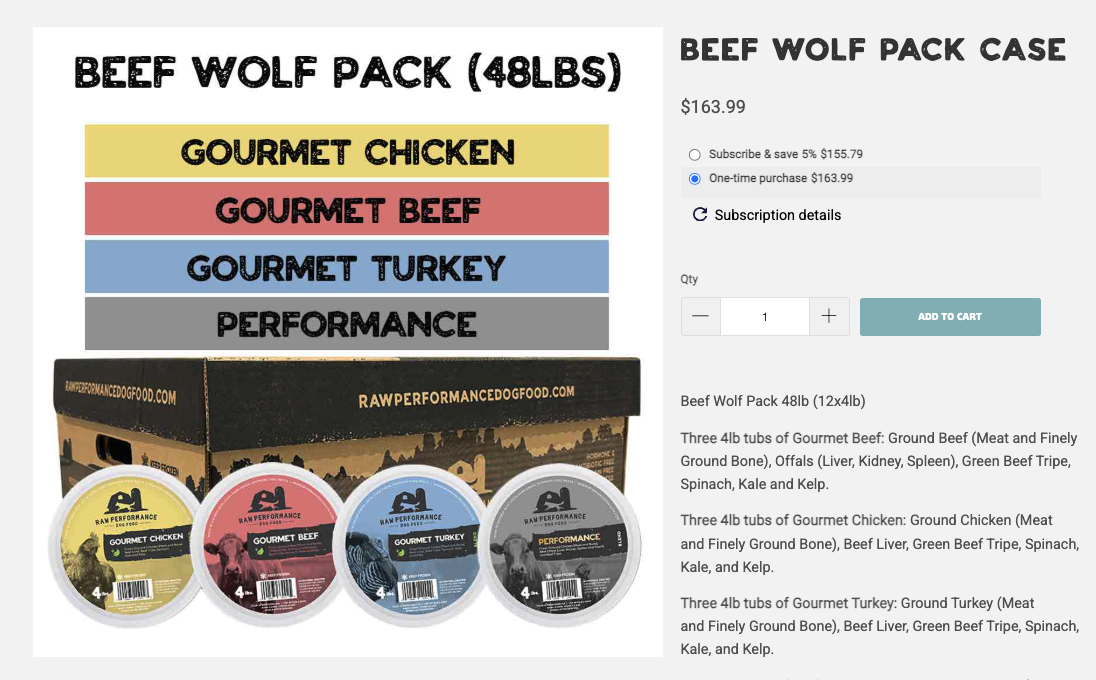
Go to the product page of the product you would like to add to your subscription.
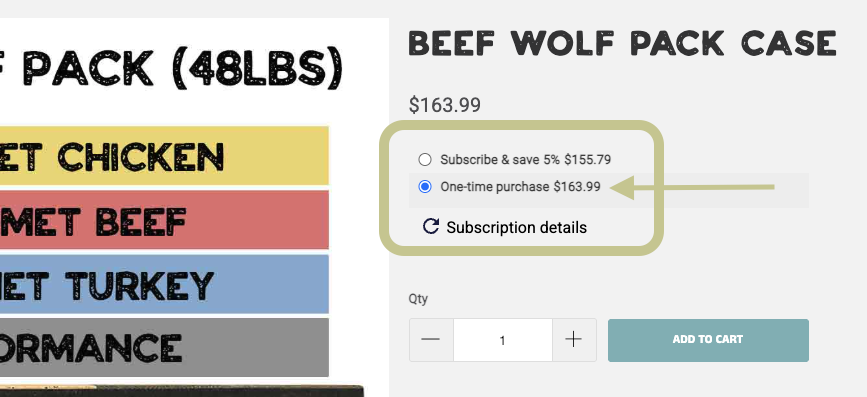
By default, the "one-time purchase" option is selected.
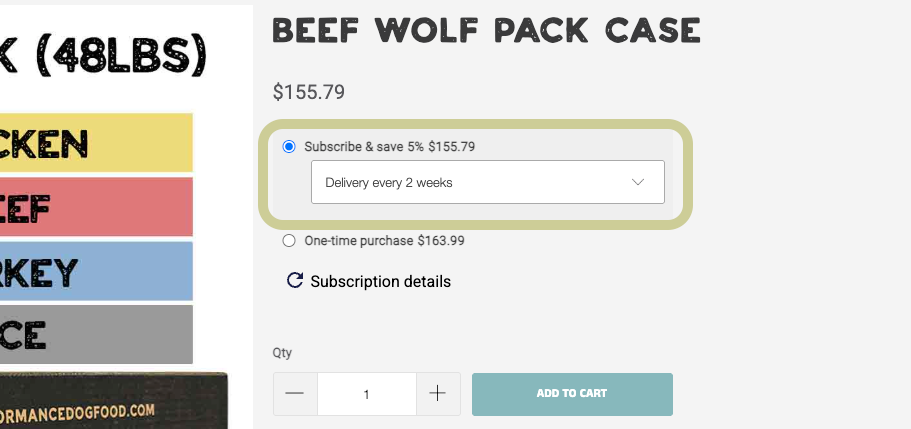
Select "Subscribe & Save 5%" instead. When selected, a drop down menu will appear with the delivery frequency.
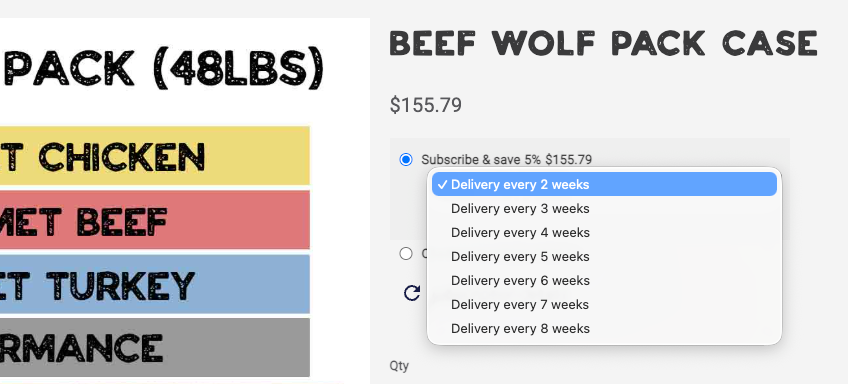
Click the drop down menu to choose the delivery frequency you want for this product.
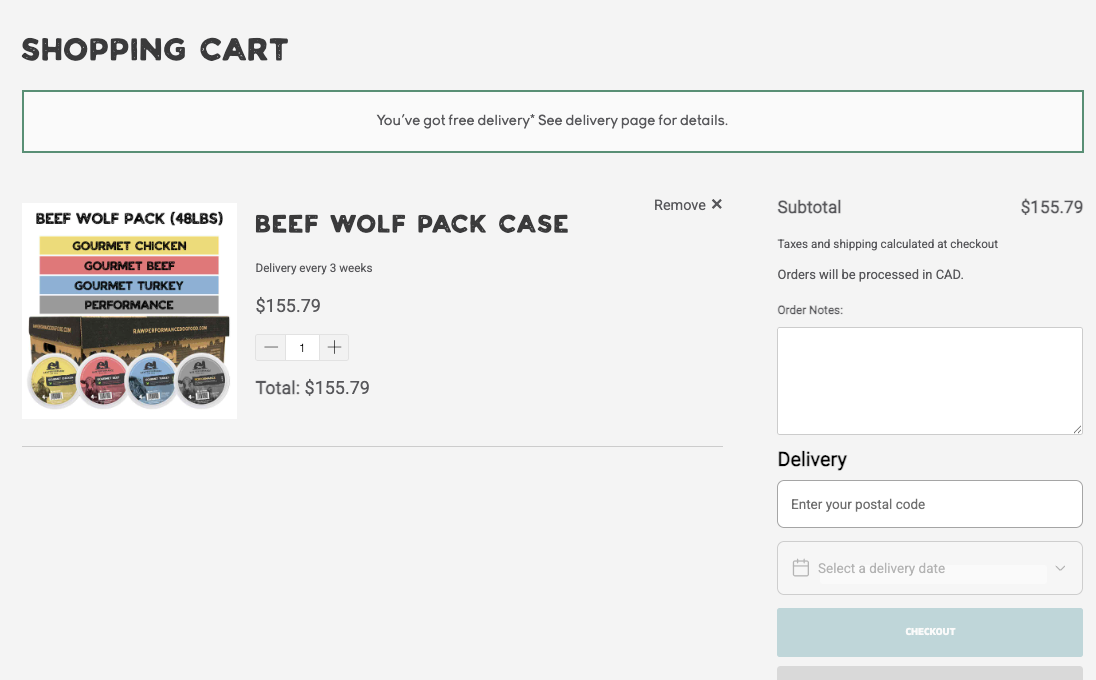
After you click add to cart, you will be directed to the cart page. If you do not want to add any more items, you can continue to step #.
If you would like to add more items, go to the product page of the next item you would like to add to your subscription.
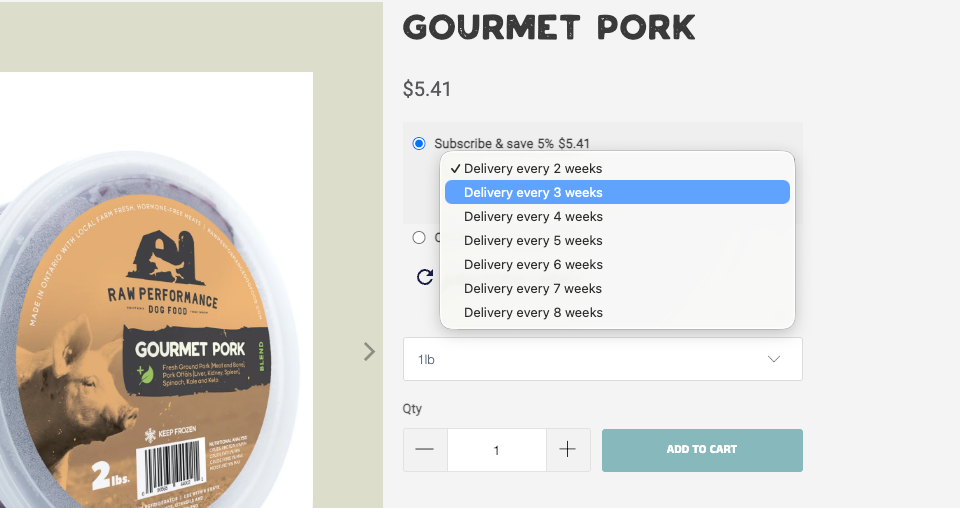
Just as you did for your first item, make sure you select "subscribe & save" and choose the delivery frequency for this item. If you chose 3 weeks for your first item, and you want the second item to come in the same order, make sure you also select "3 weeks".
Then click "add to cart".
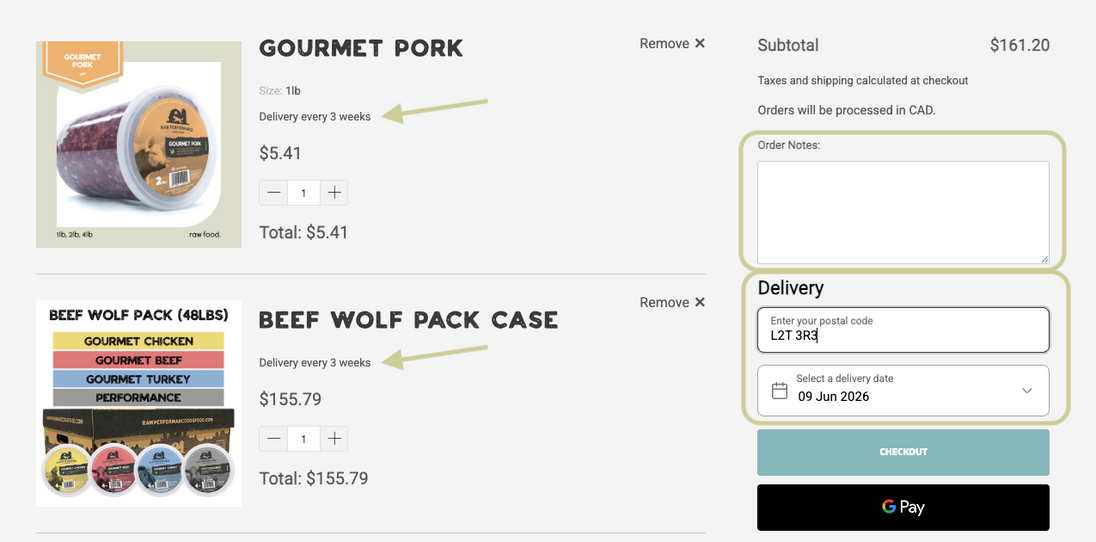
Once you have added everything to your cart, make sure each item says "Delivery every # weeks" under the name of the product.
Add any special instructions or notes to "Order Notes".
Add your postal code to choose when you want your first delivery will be.
NOTE: The day of the week you select, will be the week day you will receive your future orders.
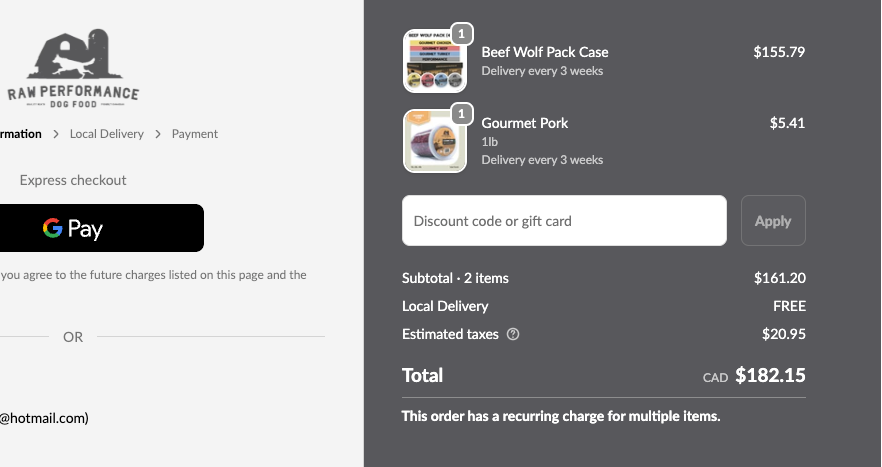
At checkout, you will see the items you are purchasing and you will also see "Delivery every # weeks" under each item you are starting a subscription for.